Android Integeration with AdMob Mediation
詳細範例
AdMob 21.5.0 Mediation Project (包含橫幅、插頁、原生廣告)
新增應用程式
AdMob網站: https://apps.admob.com/
- 進入 AdMob 網頁選擇 應用程式 > 新增應用程式
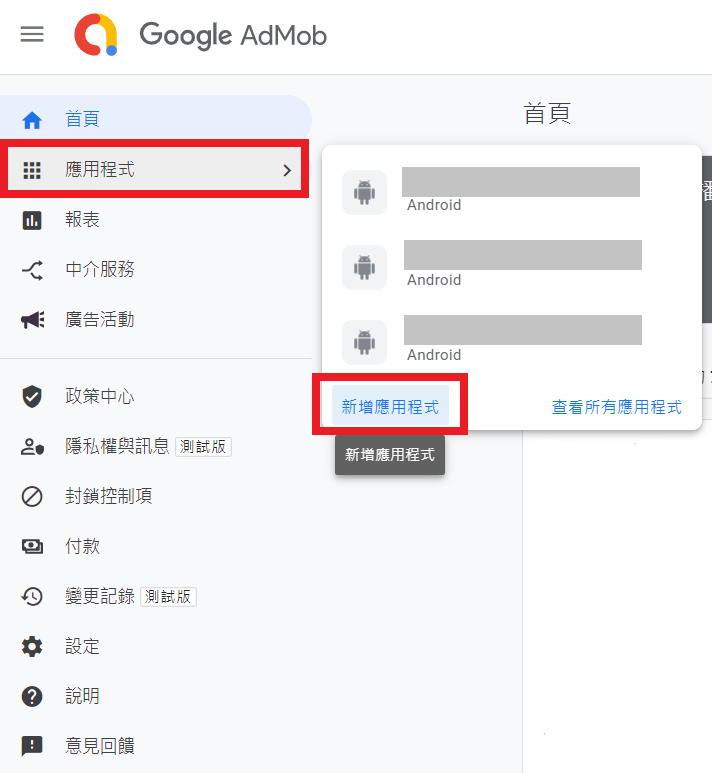
選擇平台
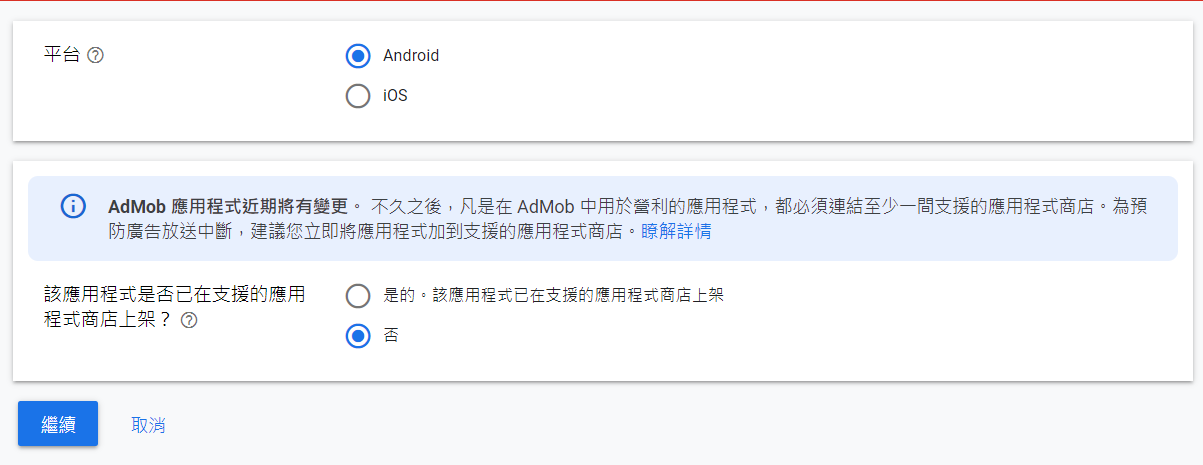
接著輸入應用程式名稱
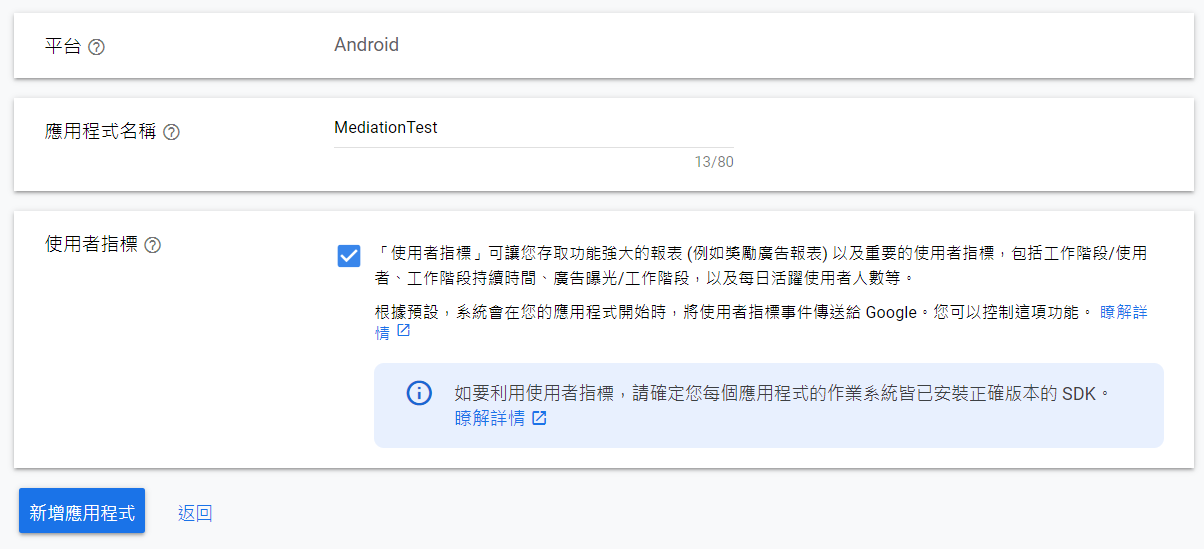
建立完成
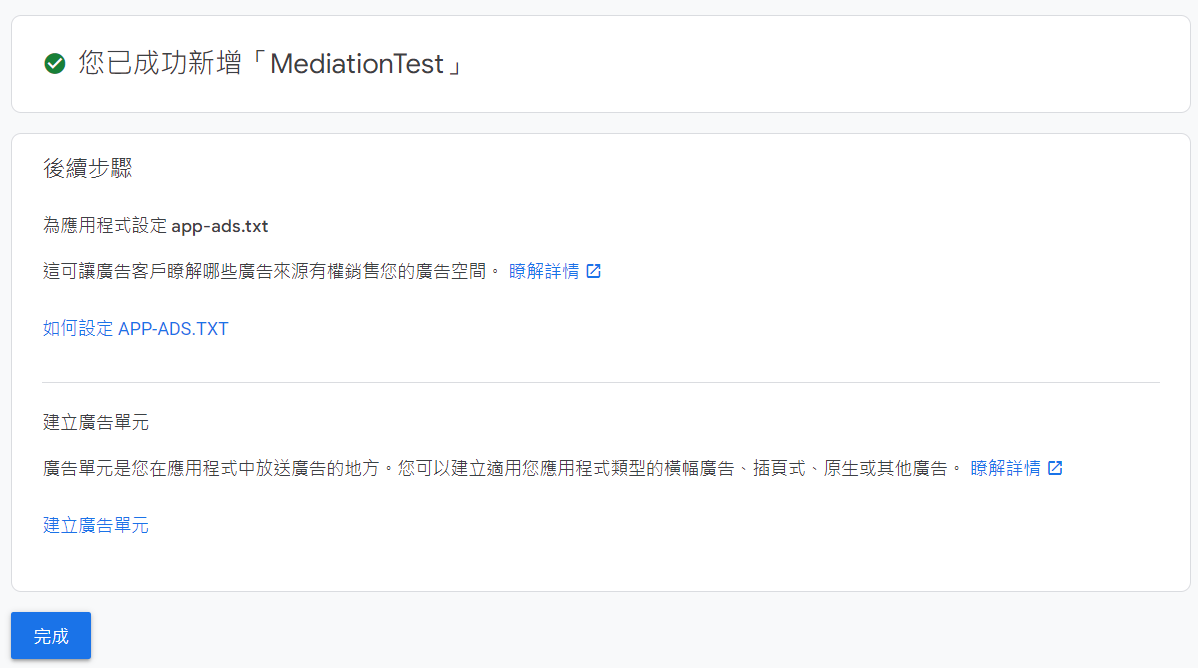
新增廣告單元
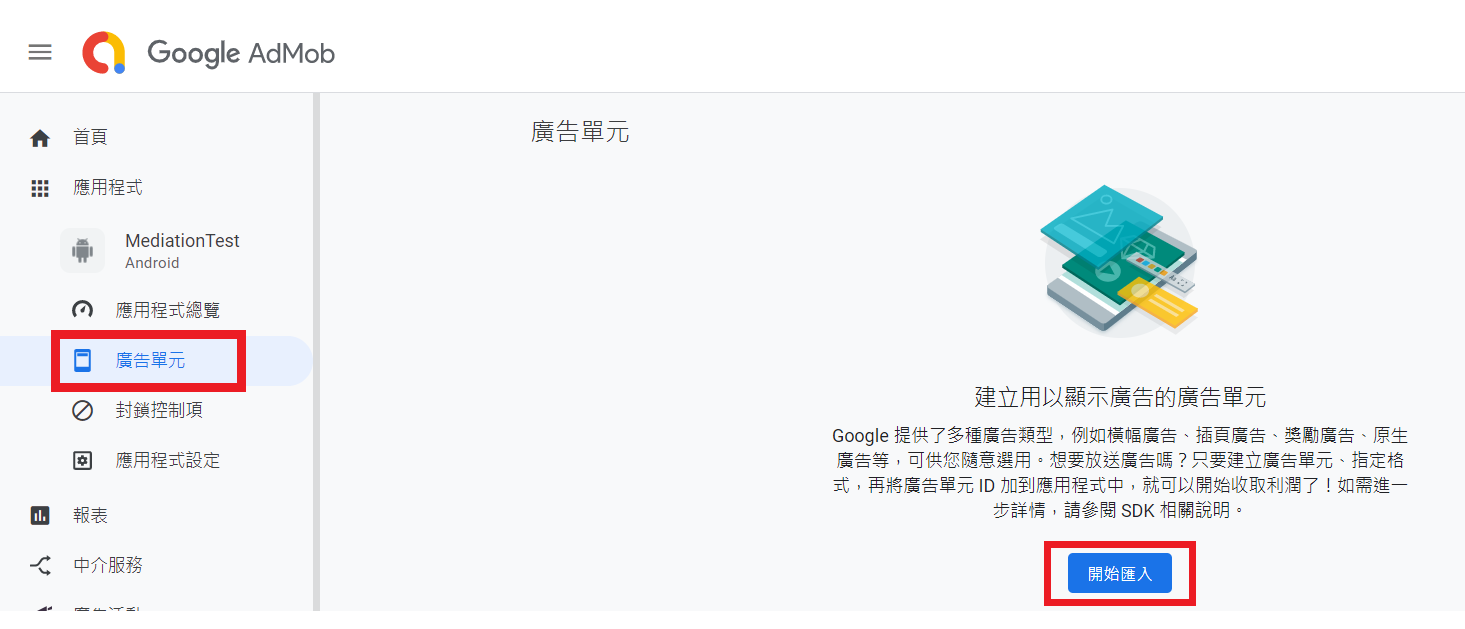
- 點選先前建立的應用程式並選擇 廣告單元 > 開始匯入
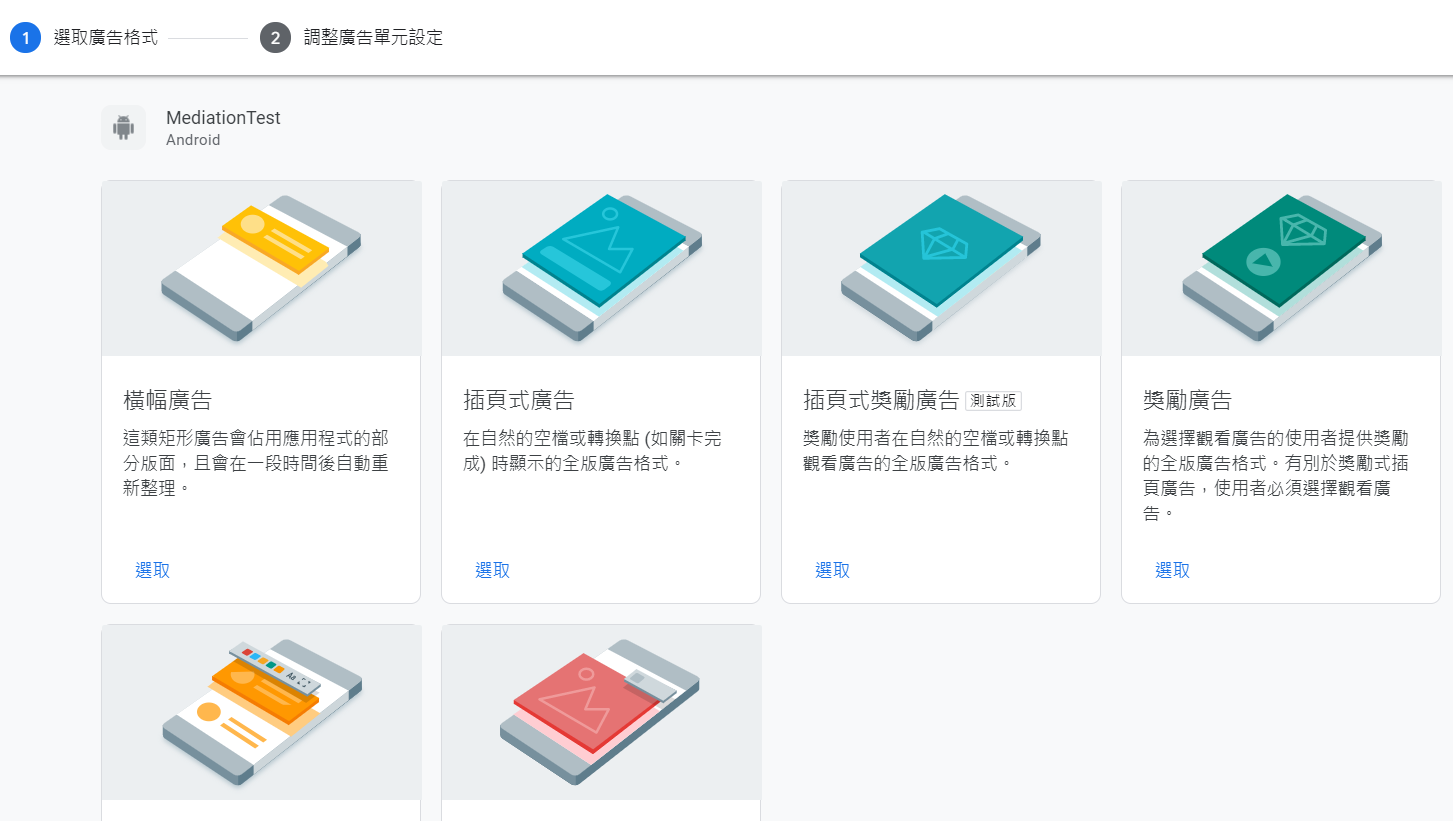
選擇欲建立的廣告單元 (以橫幅廣告為例)
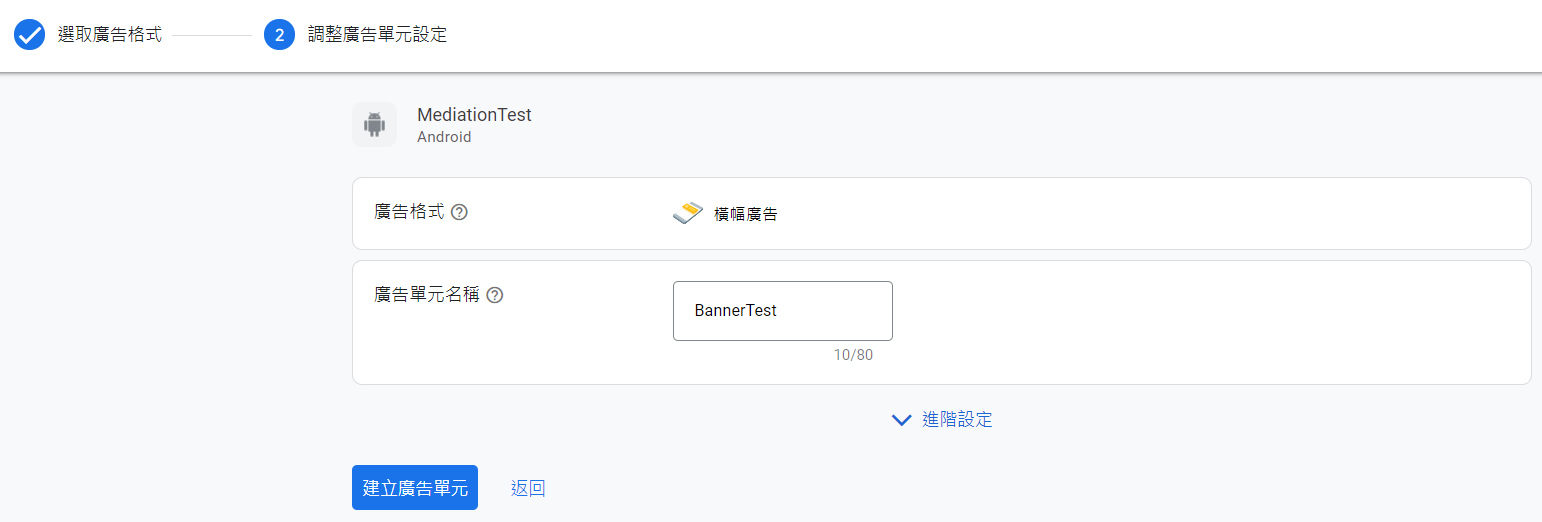
輸入廣告單元名稱
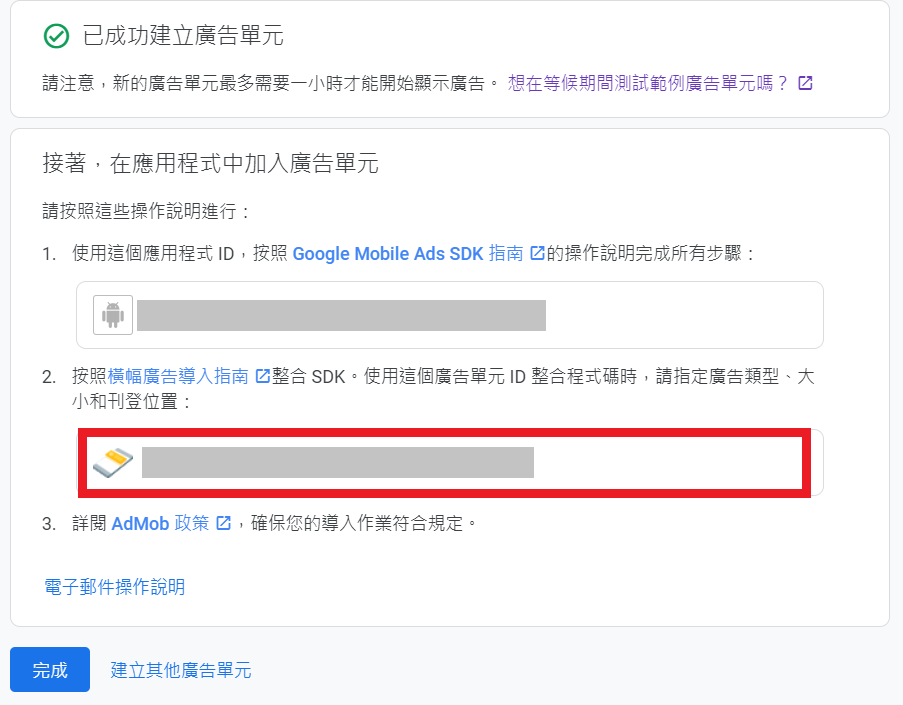
建立完成,請記下 AdMob 的廣告單元ID
新增中介服務群組
- 進入 AdMob 網頁選擇 中介服務 > 新增中介服務群組
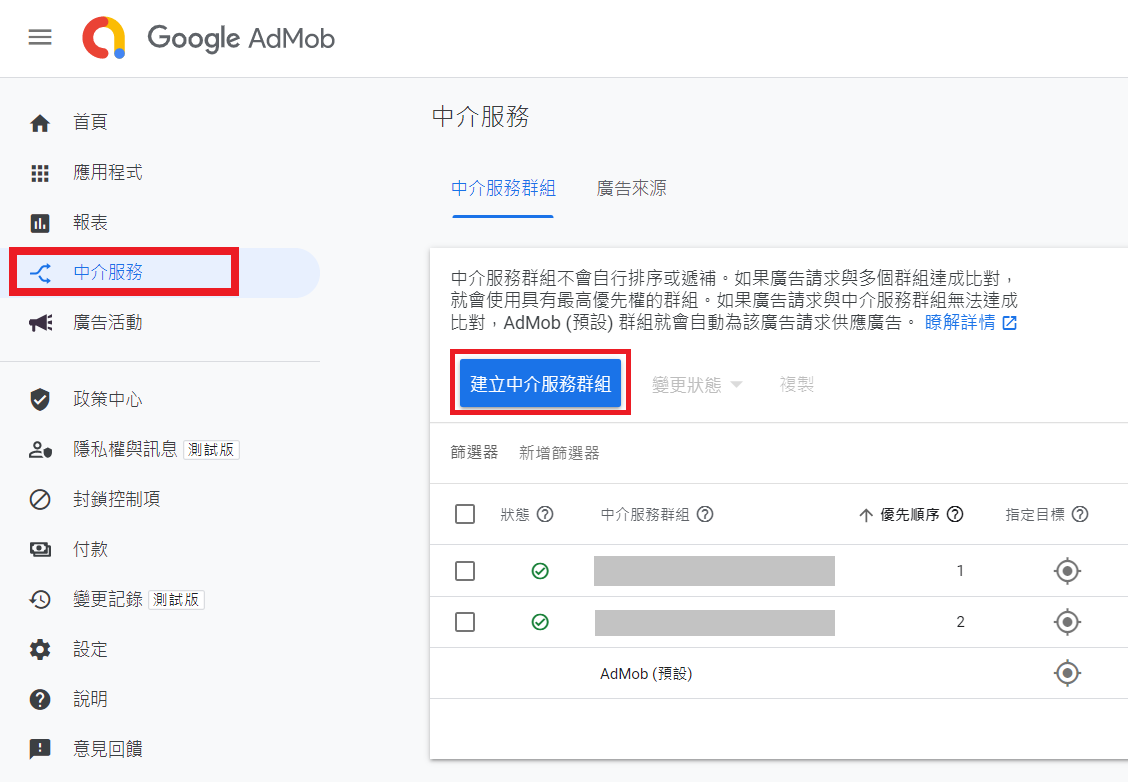
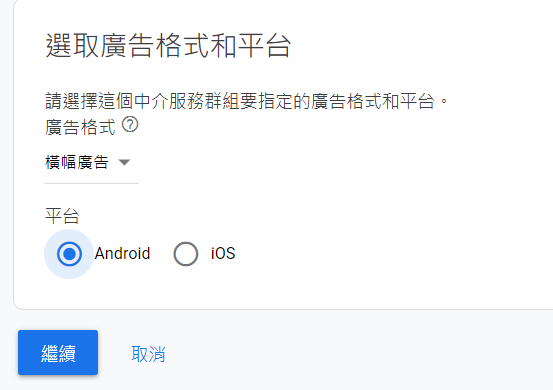
設定廣告格式、平台
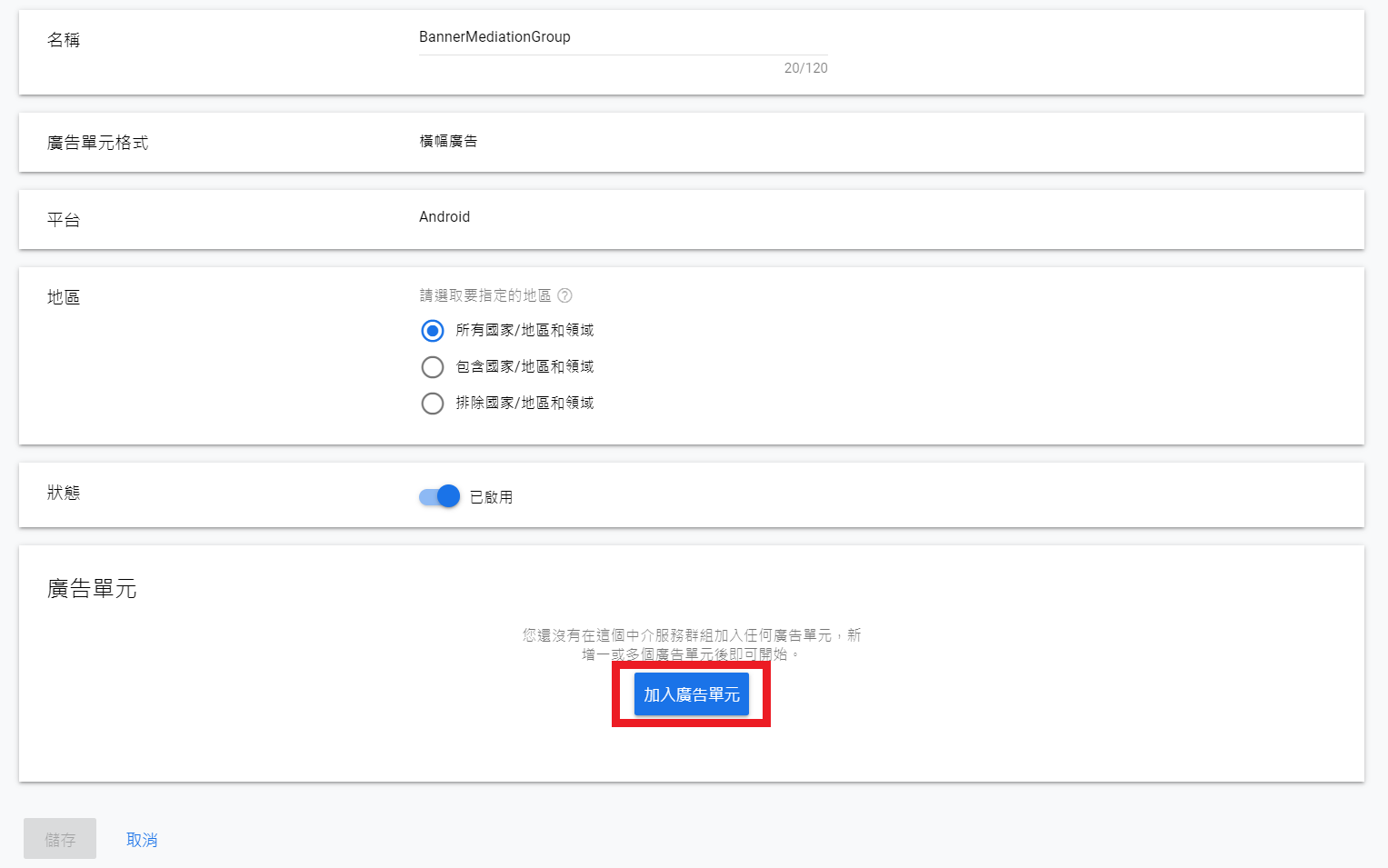
設定中介群組名稱並點選加入廣告單元
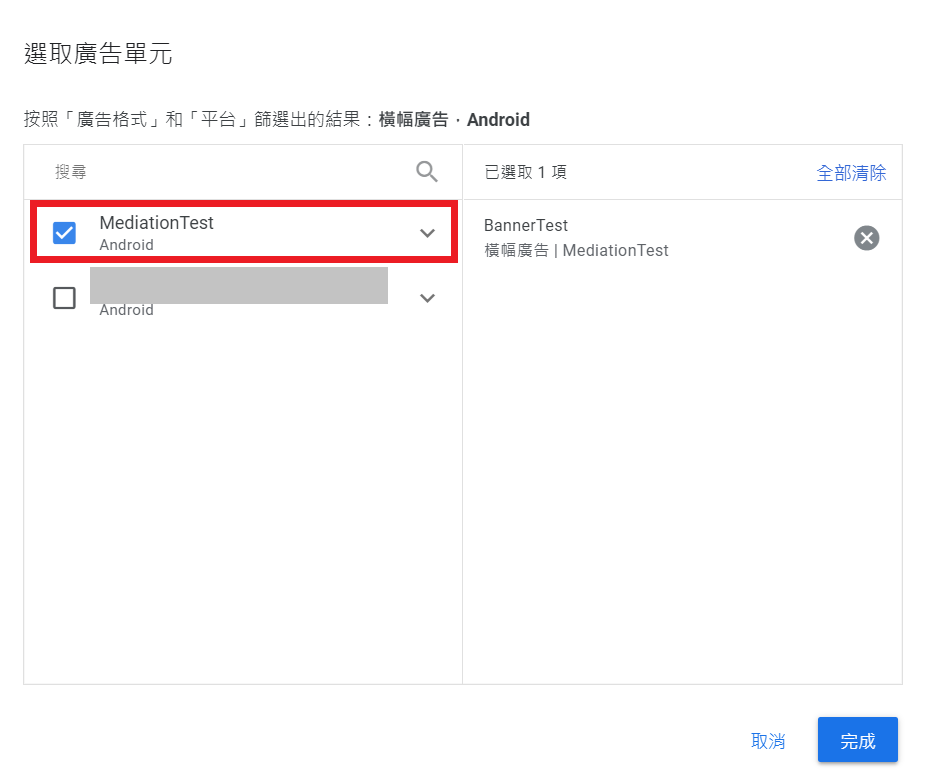
選擇先前建立的廣告單元 (以橫幅廣告為例)
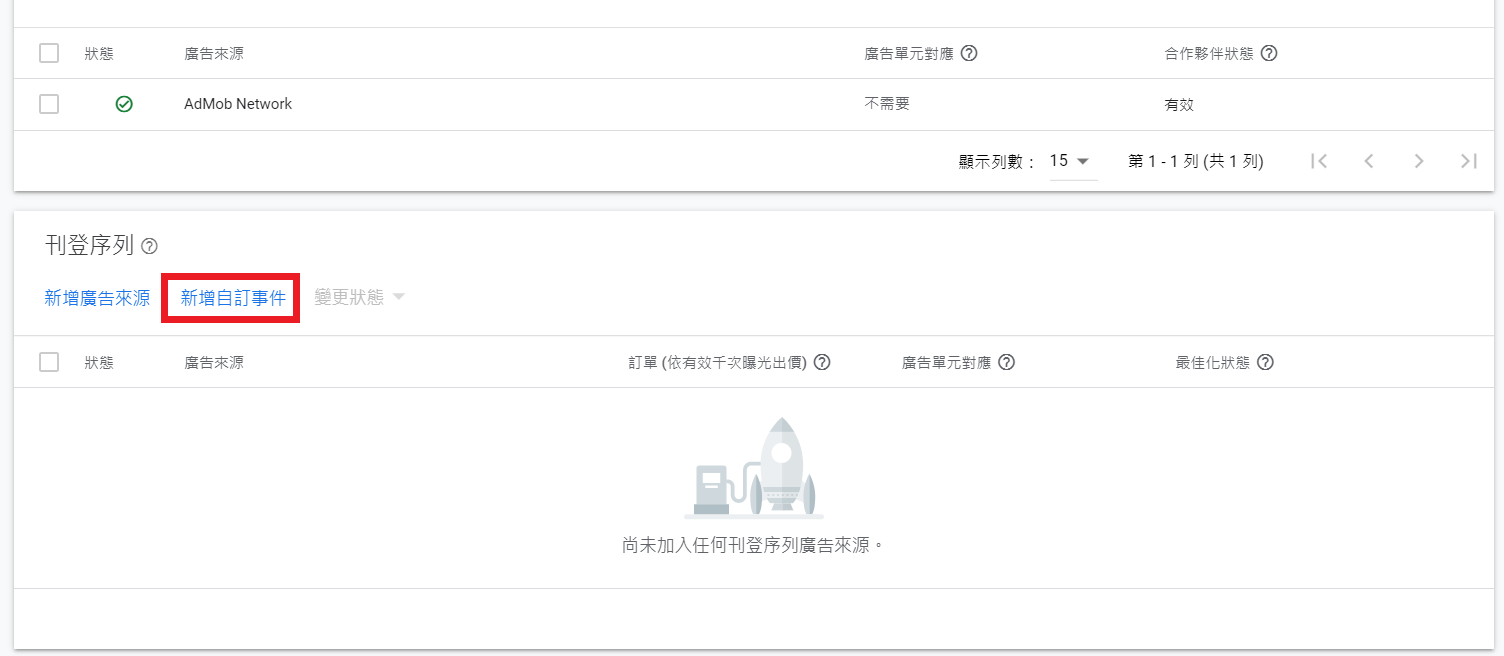
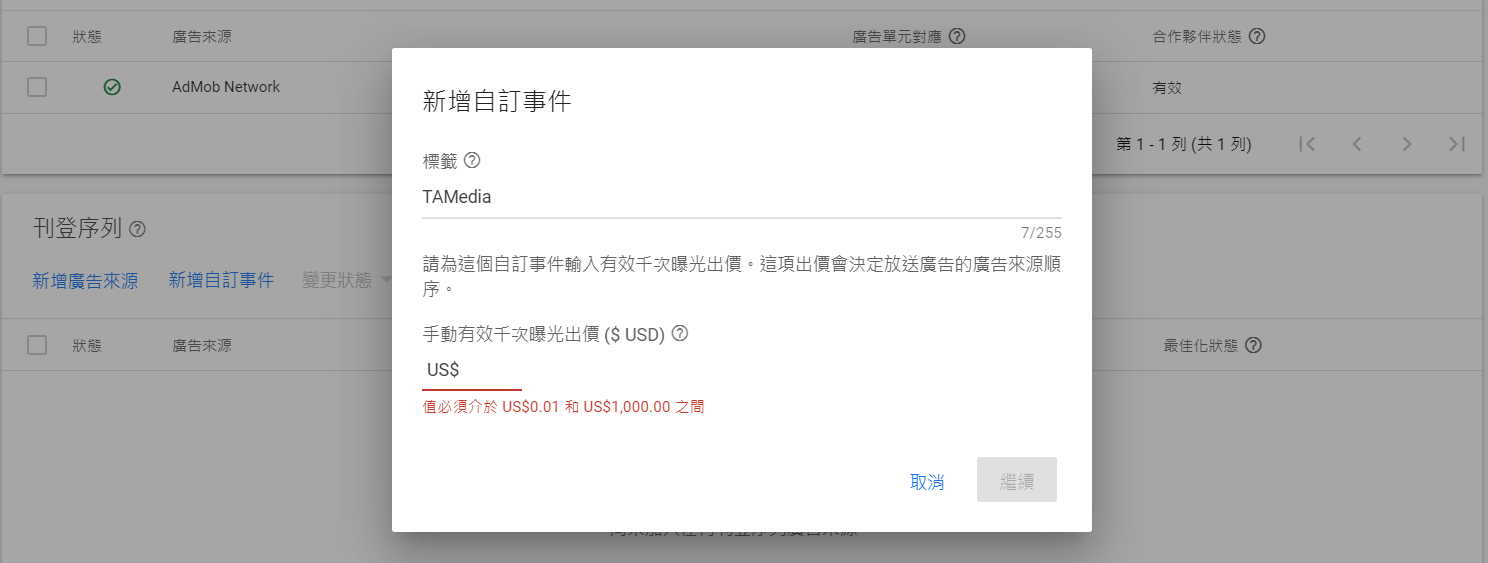
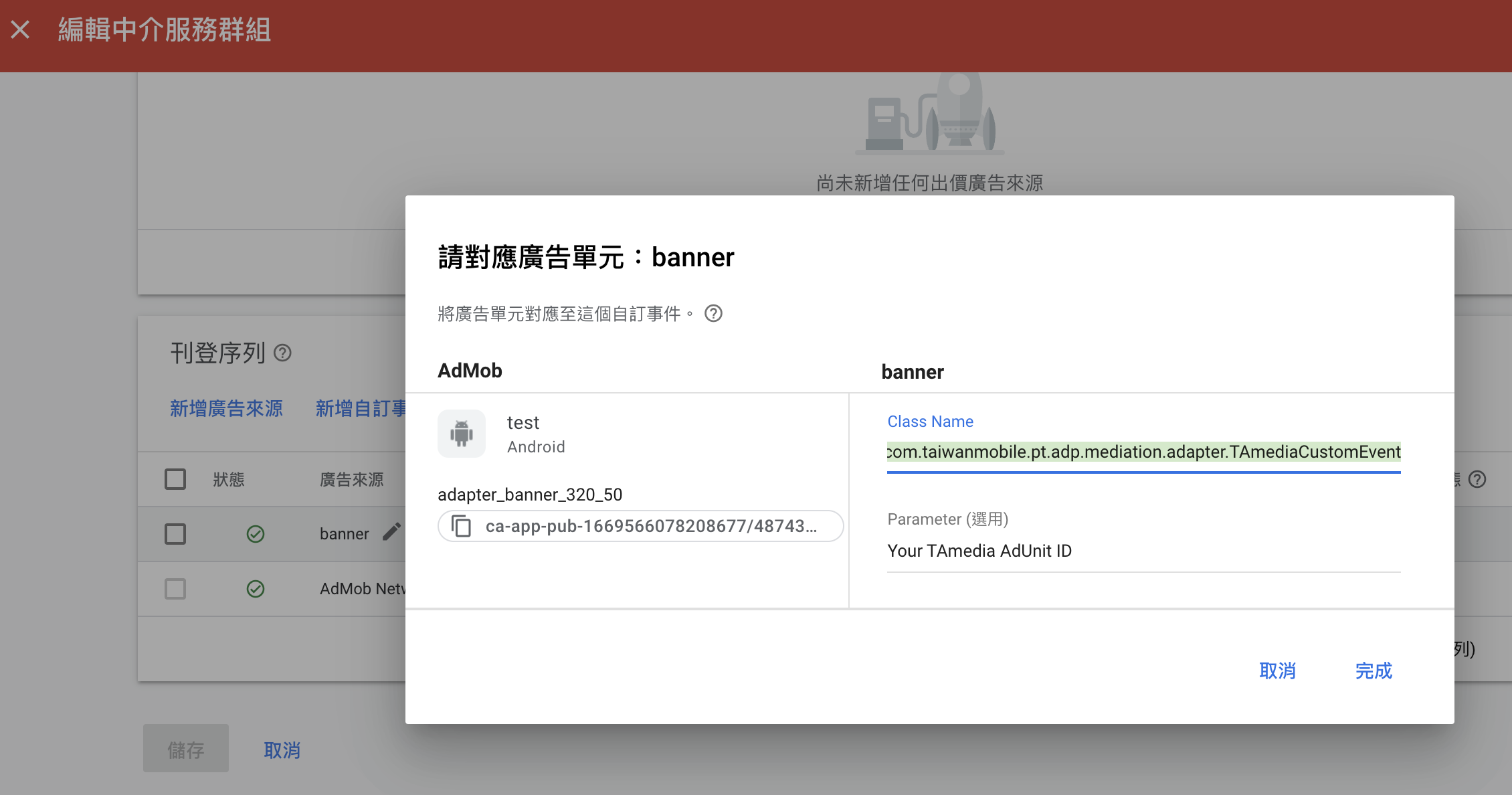
點選新增自訂事件,並設定下列相關資訊:
有效千次曝光出價: 越高代表該家聯播網廣告曝光的機會越高
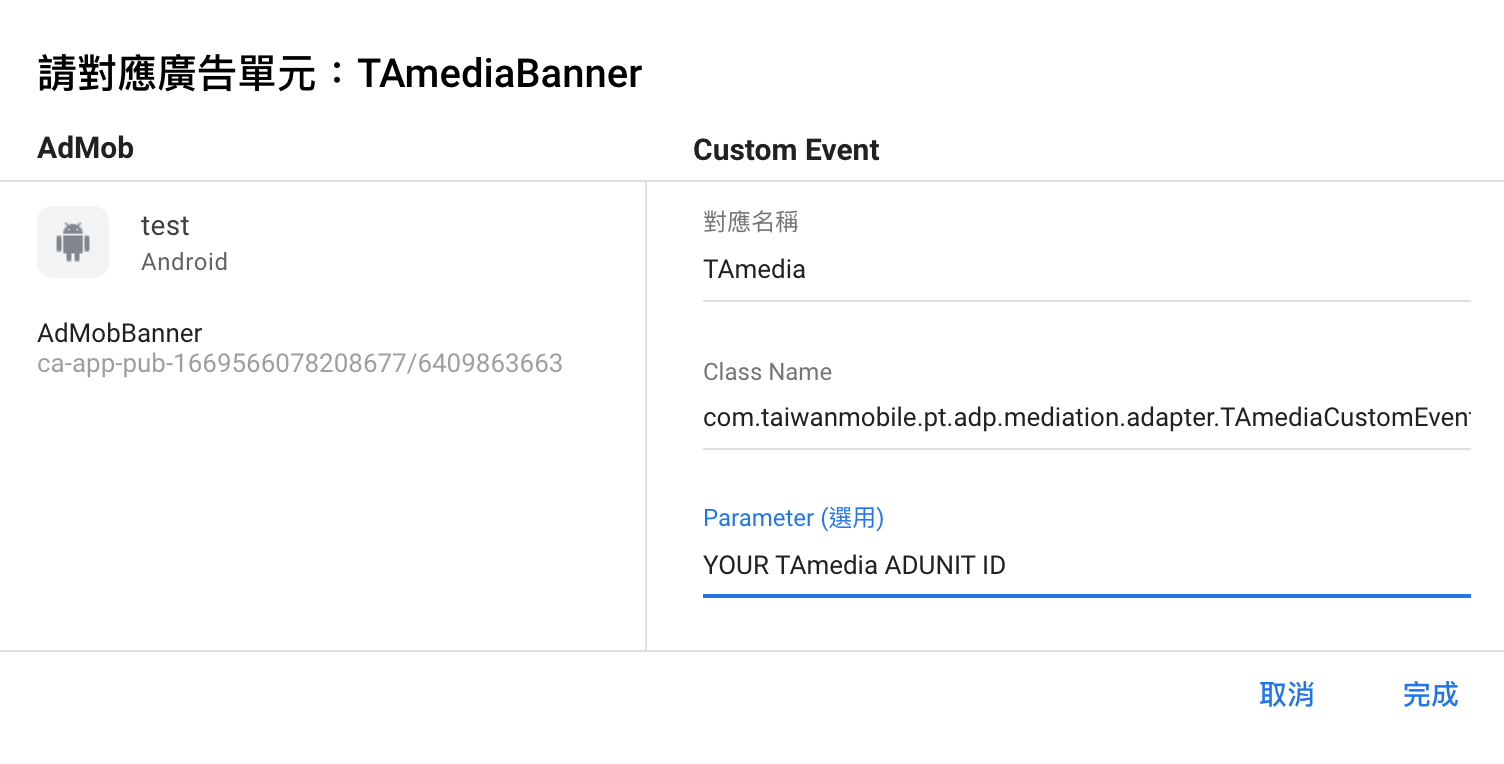
Class Name: com.taiwanmobile.pt.adp.mediation.adapter.TAmediaCustomEvent
Parameter: 輸入您的 TAmedia 廣告版位ID
TAmedia廣告版位ID
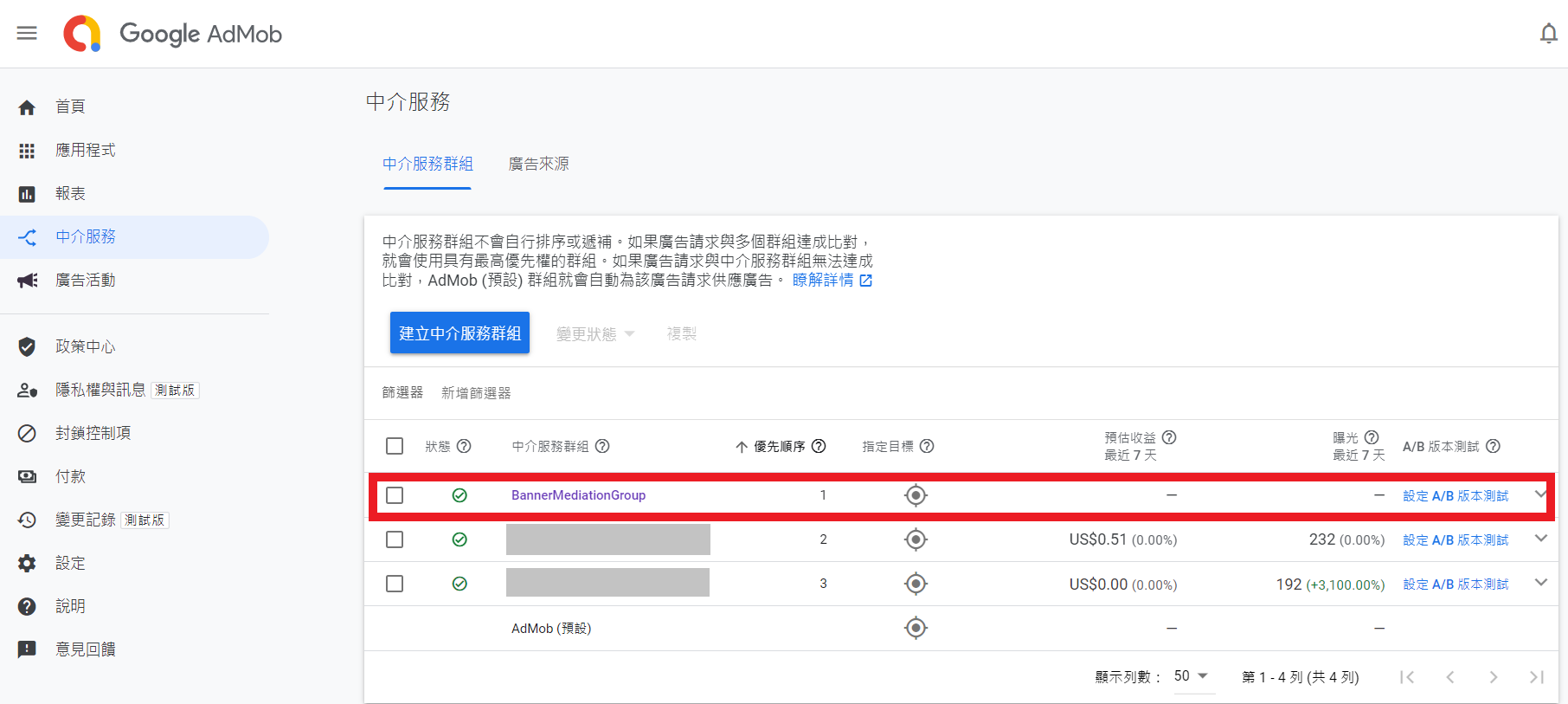
點選完成後,中介服務群組的設置便結束
程式整合
1. 請參考**AdMob for Android** 網站提供的方式整合Google Ads SDK,此步驟會使用到**新增應用程式所取得的應用程式ID**
2. 下載** TAMedia Android SDK,並參考 開始使用Getting Started** 整合TAMedia Android SDK
3. 至詳細範例, 下載** AdMob 21.5.0 Mediation Project**,並整合下列Mediation Code進開發者專案中
Mediation Code
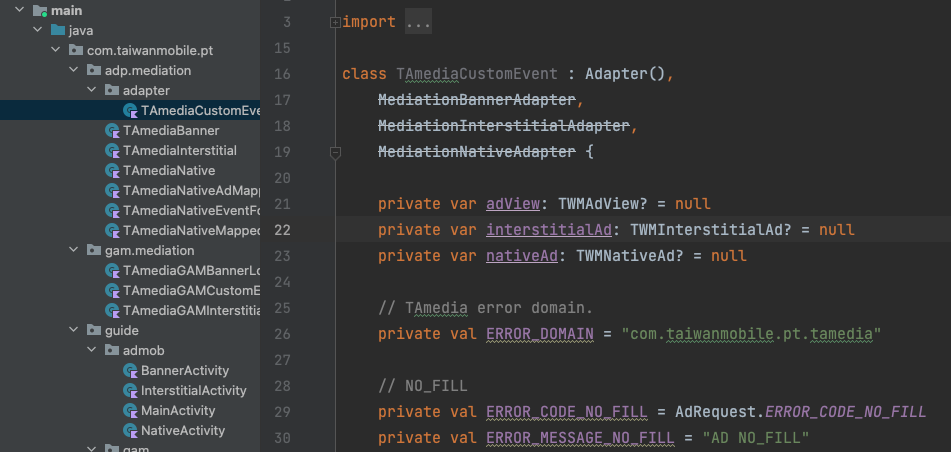
Banner / Interstitial / Native等中介實作皆在TAmediaCustomEvent
Proguard
下列mediation class, 開發商於proguard中須進行保護, 避免混淆後找不到該class造成AdMob SDK拋出錯誤訊息
Could not load custom event implementation class: com.taiwanmobile.pt.adp.mediation.TAmediaNative, trying Adapter implementation class.
-keep class com.taiwanmobile.pt.adp.mediation.** {
    public protected <fields>;
    public protected <methods>;
}
Developer Sample Code
Banner
1. 在MainActivity.kt中輸入AdUnit Id
companion object {
private const val ADUNIT_ID_BANNER_320x50 = "{AdMob Banner AdUnit Id}"
private const val ADUNIT_ID_BANNER_300x250 = "{AdMob Banner AdUnit Id}"
private const val ADUNIT_ID_SMART_BANNER = "{AdMob Banner AdUnit Id}"
private const val ADUNIT_ID_INTERSTITIAL = "{AdMob Interstitial AdUnit Id}"
private const val ADUNIT_ID_NATIVE = "{AdMob Native AdUnit Id}"
const val KEY_ADUNITID = "adUnitId"
const val KEY_ADSIZE = "adSize"
}
2. 在layout檔案中加入可放置廣告的RelativeLayout(※僅供參考,開發者可依照自訂的layout進行配置使用)
<RelativeLayout
android:id="@+id/adContainer"
android:layout_width="wrap_content"
android:layout_height="wrap_content"
android:layout_centerHorizontal="true"
android:layout_alignParentBottom="true">
</RelativeLayout>
3. BannerActivity 程式加入Banner的宣告, 設定AdUnitId與AdSize
class BannerActivity : AppCompatActivity() {
private var adView: AdView? = null
override fun onCreate(savedInstanceState: Bundle?) {
super.onCreate(savedInstanceState)
setContentView(R.layout.activity_banner)
val adContainer = findViewById<View>(R.id.adContainer) as RelativeLayout
val args = intent.extras
if (args != null) {
val adUnitId = args.getString(MainActivity.KEY_ADUNITID)
val adSize: AdSize = when (args.getString(MainActivity.KEY_ADSIZE)) {
BANNER_320x50 -> {
AdSize.BANNER
}
BANNER_300x250 -> {
AdSize.MEDIUM_RECTANGLE
}
else -> {
val displayMetrics = resources.displayMetrics
val dpWidth = (displayMetrics.widthPixels / displayMetrics.density).toInt()
AdSize.getCurrentOrientationAnchoredAdaptiveBannerAdSize(
this,
dpWidth
)
}
}
// Banner initial
adUnitId?.let {
val request = AdRequest.Builder().build()
adView = AdView(this@BannerActivity)
adView?.adUnitId = it
adView?.adSize = adSize
adView?.adListener = AdListenerImpl()
adView?.loadAd(request)
// add view into layout
adContainer.addView(adView)
}
}
}
}
Interstitial
1. 在MainActivity.kt中輸入AdUnit Id
companion object {
private const val ADUNIT_ID_BANNER_320x50 = "{AdMob Banner AdUnit Id}"
private const val ADUNIT_ID_BANNER_300x250 = "{AdMob Banner AdUnit Id}"
private const val ADUNIT_ID_SMART_BANNER = "{AdMob Banner AdUnit Id}"
private const val ADUNIT_ID_INTERSTITIAL = "{AdMob Interstitial AdUnit Id}"
private const val ADUNIT_ID_NATIVE = "{AdMob Native AdUnit Id}"
const val KEY_ADUNITID = "adUnitId"
const val KEY_ADSIZE = "adSize"
}
2. InterstitialActivity 程式加入Interstitial的宣告, 設定AdUnitId
class InterstitialActivity : AppCompatActivity() {

    private var interstitialAd: InterstitialAd? = null
    private var adUnitId: String? = null
    private lateinit var binding: ActivityInterstitialBinding

    override fun onCreate(savedInstanceState: Bundle?) {
        super.onCreate(savedInstanceState)
        binding = ActivityInterstitialBinding.inflate(layoutInflater)
        val view = binding.root
        setContentView(view)

        val args = intent.extras
        if (args != null) {
            adUnitId = args.getString(MainActivity.KEY_ADUNITID)
        }
    }

    // triggered in activity_int.xml
    fun fireAd(v: View?) {
        adUnitId?.let {
            val adRequest = AdRequest.Builder().build()
            InterstitialAd.load(this, it, adRequest, object : InterstitialAdLoadCallback() {
                override fun onAdLoaded(interstitialAd: InterstitialAd) {
                    this@InterstitialActivity.interstitialAd = interstitialAd
                    Toast.makeText(
                        baseContext,
                        "onAdLoaded(interstitial) invoked!!",
                        Toast.LENGTH_SHORT
                    ).show()
                    interstitialAd.show(this@InterstitialActivity)
                }

                override fun onAdFailedToLoad(loadAdError: LoadAdError) {
                    Toast.makeText(
                        baseContext,
                        loadAdError.message,
                        Toast.LENGTH_SHORT
                    ).show()
                    interstitialAd = null
                }
            })
        }
    }
}
=== Native ===
1. 在MainActivity.kt中輸入AdUnit Id
companion object {
private const val ADUNIT_ID_BANNER_320x50 = "{AdMob Banner AdUnit Id}"
private const val ADUNIT_ID_BANNER_300x250 = "{AdMob Banner AdUnit Id}"
private const val ADUNIT_ID_SMART_BANNER = "{AdMob Banner AdUnit Id}"
private const val ADUNIT_ID_INTERSTITIAL = "{AdMob Interstitial AdUnit Id}"
private const val ADUNIT_ID_NATIVE = "{AdMob Native AdUnit Id}"
const val KEY_ADUNITID = "adUnitId"
const val KEY_ADSIZE = "adSize"
}
2. NativeActivity的layout如下, 在layout檔案中加入可放置原生廣告的nativeContainer(※這裡以FrameLayout為例,開發者可依照自訂的layout進行配置使用)
<LinearLayout
xmlns:android="http://schemas.android.com/apk/res/android"
android:layout_width="match_parent"
android:layout_height="match_parent"
android:paddingBottom="@dimen/activity_vertical_margin"
android:paddingLeft="@dimen/activity_horizontal_margin"
android:paddingRight="@dimen/activity_horizontal_margin"
android:paddingTop="@dimen/activity_vertical_margin"
android:orientation="vertical">
<FrameLayout
android:id="@+id/native_container"
android:layout_width="match_parent"
android:layout_height="wrap_content"
android:layout_marginTop="@dimen/activity_vertical_margin" />
</LinearLayout>
3. 準備廣告佈局native_ad.xml, 使用AdMob com.google.android.gms.ads.nativead.NativeAdView
<com.google.android.gms.ads.nativead.NativeAdView
xmlns:android="http://schemas.android.com/apk/res/android"
android:layout_width="match_parent"
android:layout_height="wrap_content"
android:orientation="vertical">
<LinearLayout
android:layout_width="match_parent"
android:layout_height="wrap_content"
android:layout_gravity="center"
android:background="#FFFFFF"
android:minHeight="50dp"
android:orientation="vertical">
<LinearLayout
android:layout_width="match_parent"
android:layout_height="wrap_content"
android:orientation="vertical"
android:paddingLeft="20dp"
android:paddingTop="3dp"
android:paddingRight="20dp">
<LinearLayout
android:layout_width="match_parent"
android:layout_height="wrap_content"
android:orientation="horizontal">
<ImageView
android:id="@+id/ad_app_icon"
android:layout_width="40dp"
android:layout_height="40dp"
android:adjustViewBounds="true"
android:paddingEnd="5dp"
android:paddingRight="5dp"
android:paddingBottom="5dp" />
<LinearLayout
android:layout_width="match_parent"
android:layout_height="wrap_content"
android:orientation="vertical">
<TextView
android:id="@+id/ad_headline"
android:layout_width="match_parent"
android:layout_height="wrap_content"
android:textColor="#0000FF"
android:textSize="16sp"
android:textStyle="bold" />
</LinearLayout>
</LinearLayout>
<LinearLayout
android:layout_width="match_parent"
android:layout_height="wrap_content"
android:orientation="vertical">
<TextView
android:id="@+id/ad_body"
android:layout_width="wrap_content"
android:layout_height="wrap_content"
android:layout_marginEnd="20dp"
android:layout_marginRight="20dp"
android:textSize="12sp" />
<com.google.android.gms.ads.nativead.MediaView
android:id="@+id/ad_media"
android:layout_width="250dp"
android:layout_height="175dp"
android:layout_gravity="center_horizontal"
android:layout_marginTop="5dp" />
<LinearLayout
android:layout_width="wrap_content"
android:layout_height="wrap_content"
android:layout_gravity="end"
android:orientation="horizontal"
android:paddingTop="10dp"
android:paddingBottom="10dp">
<Button
android:id="@+id/ad_call_to_action"
android:layout_width="wrap_content"
android:layout_height="wrap_content"
android:gravity="center"
android:textSize="12sp" />
</LinearLayout>
</LinearLayout>
</LinearLayout>
</LinearLayout>
</com.google.android.gms.ads.nativead.NativeAdView>
4. 使用AdMob AdLoader載入原生廣告
當AdLoader取得原生廣告時, 產出(inflate)原生廣告佈局native_ad.xml並進行NativeAdView物件填充(population), 詳情可參考下方populateNativeAdView()
NativeAdView填充下列屬性: headline, body, call to action, icon, mediaView等資訊
填充後將native_ad.xml物件加入nativeContainer
    override fun onCreate(savedInstanceState: Bundle?) {
        super.onCreate(savedInstanceState)
        binding = ActivityNativeBinding.inflate(layoutInflater)
        val view = binding.root
        setContentView(view)

        val args = intent.extras
        args?.let {
            val adUnitId = args.getString(MainActivity.KEY_ADUNITID) ?: ""
            val adLoader = AdLoader.Builder(this, adUnitId)
                .forNativeAd { ad: NativeAd ->
                    nativeAd = ad
                    val adLayout = NativeAdBinding.inflate(layoutInflater)
                    populateNativeAdView(ad, adLayout)
                    binding.nativeContainer.removeAllViews()
                    binding.nativeContainer.addView(adLayout.root)

                    // If this callback occurs after the activity is destroyed, you
                    // must call destroy and return or you may get a memory leak.
                    // Note `isDestroyed` is a method on Activity.

                    if (isDestroyed) {
                        ad.destroy()
                        return@forNativeAd
                    }
                }
                .withAdListener(object : AdListener() {
                    override fun onAdFailedToLoad(adError: LoadAdError) {
                        Toast.makeText(this@NativeActivity, "onAdFailedToLoad", Toast.LENGTH_LONG)
                            .show()
                    }

                    override fun onAdClicked() {
                        super.onAdClicked()
                        Toast.makeText(this@NativeActivity, "onAdClicked", Toast.LENGTH_LONG)
                            .show()
                    }

                    override fun onAdImpression() {
                        super.onAdImpression()
                        Toast.makeText(this@NativeActivity, "onAdImpression", Toast.LENGTH_LONG)
                            .show()
                    }
                })
                .withNativeAdOptions(
                    NativeAdOptions.Builder()
                        // Methods in the NativeAdOptions.Builder class can be
                        // used here to specify individual options settings.
                        .build()
                )
                .build()
            adLoader.loadAd(AdRequest.Builder().build())
        }
    }

    /**
     * Populates a [NativeAdView] object with data from a given [NativeAd].
     *
     * @param nativeAd the object containing the ad's assets
     * @param viewBinding the view binding object [NativeAdBinding] contains the [NativeAdView]
     */
    private fun populateNativeAdView(nativeAd: NativeAd, viewBinding: NativeAdBinding) {

        // fetch NativeAdView from NativeAdBinding
        val nativeAdView: NativeAdView = viewBinding.root

        // headline
        if (nativeAd.headline == null) {
            viewBinding.adHeadline.visibility = View.INVISIBLE
        } else {
            viewBinding.adHeadline.visibility = View.VISIBLE
            viewBinding.adHeadline.text = nativeAd.headline
            nativeAdView.headlineView = viewBinding.adHeadline
        }
        // body
        if (nativeAd.body == null) {
            viewBinding.adBody.visibility = View.INVISIBLE
        } else {
            viewBinding.adBody.visibility = View.VISIBLE
            viewBinding.adBody.text = nativeAd.body
            nativeAdView.bodyView = viewBinding.adBody
        }
        // call to action
        if (nativeAd.callToAction == null) {
            viewBinding.adCallToAction.visibility = View.INVISIBLE
        } else {
            viewBinding.adCallToAction.visibility = View.VISIBLE
            viewBinding.adCallToAction.text = nativeAd.callToAction
            nativeAdView.callToActionView = viewBinding.adCallToAction
        }
        // icon
        if (nativeAd.icon == null) {
            viewBinding.adAppIcon.visibility = View.GONE
        } else {
            nativeAd.icon?.drawable?.let {
                viewBinding.adAppIcon.setImageDrawable(it)
                viewBinding.adAppIcon.visibility = View.VISIBLE
                nativeAdView.iconView = viewBinding.adAppIcon
            }
        }
        // mediaView
        nativeAdView.mediaView = viewBinding.adMedia
        nativeAdView.setNativeAd(nativeAd)
    }
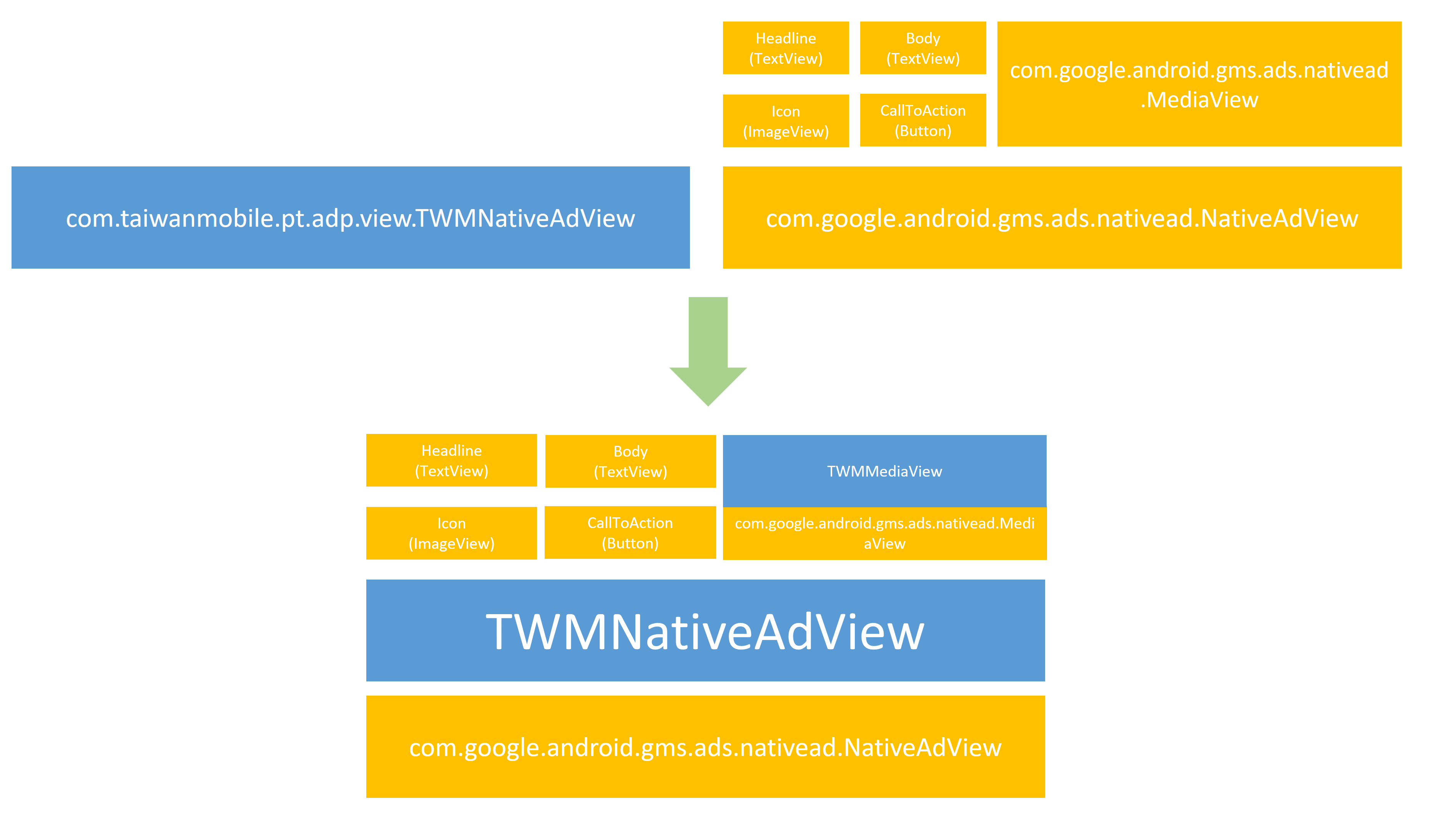
5. 設計架構圖
- 藍色為TAmedia SDK原生廣告類別, 黃色為AdMob SDK原生廣告類別
- 開發者僅需在native_ad.xml使用AdMob SDK, 其他則由TAmedia mediation實作負責
- 佈局中如果有發現AdMob SDK MediaView, TAmedia SDK TWMMediaView則會主動覆蓋至上面, 負責顯示影音廣告
AdMob SDK 21.5.0 設定調整
中介程式改為TAmediaCustomEvent (Adapter)
將CustomEventBanner / CustomEventInterstitial / CustomEventNative改為TAmediaCustomEvent
Banner / Interstitial / Native等中介實作皆在TAmediaCustomEvent
AdMob SDK 22.2.0 設定調整 
- 支援AdMob SDK 22.2.0
- 支援Google Ad Manager